
Webhook publishing
Step-by-step guide to setting up your own webhook — such as an n8n, Make or custom-built endpoint — as a publishing destination in ALLMEDIA.AI.
Requirements
On the customer side
- A publicly reachable HTTPS URL that accepts POST requests
- Someone who builds the workflow behind it (n8n, Make, own app)
- The workflow can respond within 30 minutes
- Optional: a health check URL for the daily availability check
On the ALLMEDIA side
- Access to the right workspace
- Permission to create channel connections and API keys
- A channel to which the connection is assigned
How webhook publishing works
The webhook is a two-way integration: ALLMEDIA sends the post, the customer’s workflow publishes it and reports the result back.
When a post is due for publication, ALLMEDIA.AI sends a POST request to the configured webhook URL. After processing, the workflow must send a POST request back to the webhookUrl included in the payload — only then is the post considered published.
1 Create the connection
-
Open channel connections
Setup → Content & channels → Channel connections -
Start a new connection
Click “Connect channel” at the top right, type
Webhookin the search field and click the tile Webhook — “Custom webhook integration”.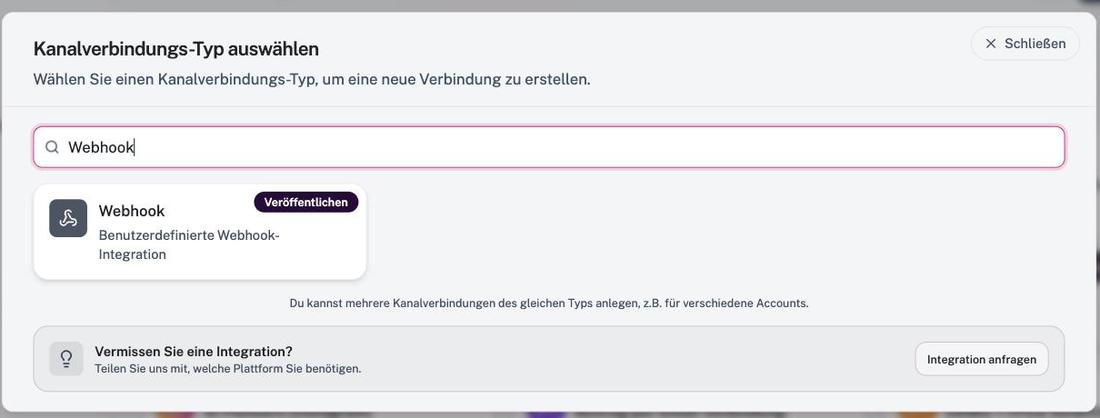
Type selection after searching for “Webhook”. -
Give it a name
Enter a meaningful name in the Name field, e.g.
n8n blog publishing. The name will later appear in the channel workflow. -
Enter the webhook URL
In the required field Webhook URL, enter the destination address to which the posts are sent — for example
https://n8n.example.com/webhook/allmedia-publish.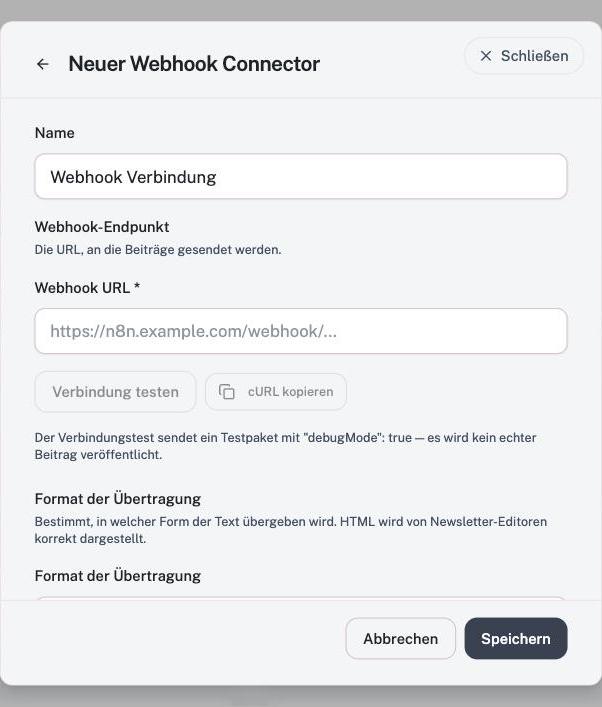
The “New Webhook Connector” dialog: name, webhook URL, connection test and cURL copy function. -
Choose the transfer format
Determines the form in which the text is passed on:
Option When to use HTML (recommended) Displayed correctly by newsletter editors and most CMSs. Markdown (original text) Default setting. Use it if the target workflow processes Markdown itself. Plain text For destinations without formatting, e.g. simple notifications. 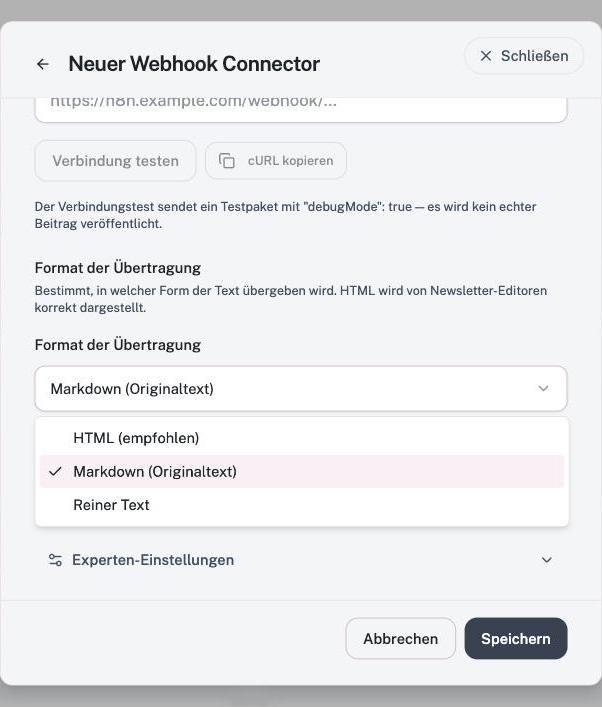
The three options in the Transfer format field.
2 Expert settings (optional, but recommended)
Expand via “Expert Settings”. As soon as something is configured, the section shows the label Configured.
-
API key authentication
The selected API key is sent as the header
x-allmedia-api-keywith all webhook calls. This lets the workflow verify that the request really comes from ALLMEDIA.AI.Use “Create new key” to create a key right here (e.g.
Webhook API Key (standard)). It is then shown once in plain text, e.g.amk_wh_xxxxxxxxxxxxxxxxxxxxxxxxxxxxxxxx.Only visible now. Store the key securely right away (password manager) — it cannot be displayed again. The same key is also needed for the callback back into the system.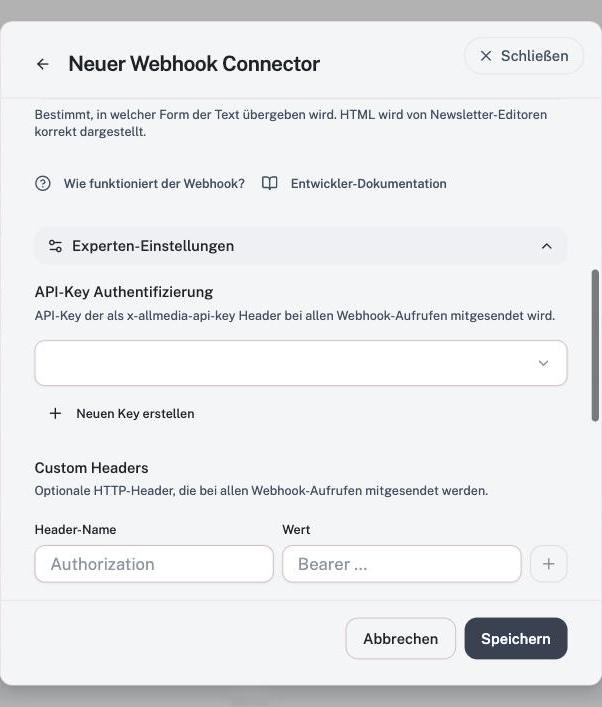
Expert settings: API key selection, Create new key and Custom Headers. -
Custom Headers
Optional HTTP headers that are sent with all webhook calls — such as
Authorization: Bearer …if the target endpoint requires its own authentication. Enter the header name and value and add it with +. -
Health check address
Your own address for the recurring availability check, e.g.
https://n8n.example.com/webhook/health, plus the Method (defaultGET).It is checked automatically every day and also during the connection test. If the address responds with a status below 400, the connection is considered OK. Use “Copy health check cURL” to copy the matching command for testing.
-
SEO & schema.org
Optional additional fields in the payload sent:
Include SEO fields — adds
focus_keyword,meta_titleandmeta_description.
FAQ markup —Do not send(default) orschema.org FAQPage.The fields are transferred in addition in the payload; you can deviate from this per post.
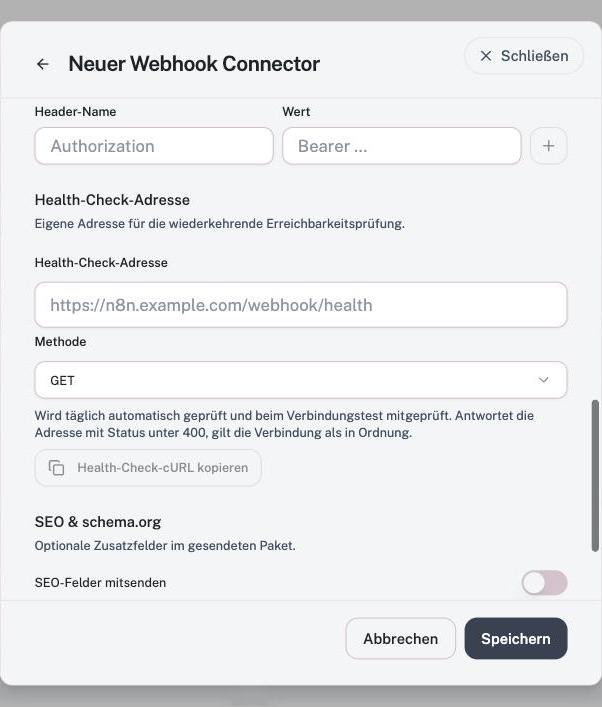
Health check address with method, plus the switches for SEO fields and FAQ markup.
3 Test and save the connection
-
Run the connection test
Click “Test connection”. The test sends a test payload with
"debugMode": trueto the configured address — no real post is published.{ "debugMode": true, "postId": "test-post-uuid", "title": "Test post", "content": "..." } -
Alternative: check manually with cURL
Use “Copy cURL” or “Copy health check cURL” to copy the commands for both addresses. The API key is never inserted; it is only output as the placeholder
$ALLMEDIA_API_KEY.curl -X GET 'https://n8n.example.com/webhook/health'
-
Save
Finish with “Save”. The connection appears in the list of channel connections.
4 Assign the connection to a channel
A channel connection on its own doesn’t publish anything yet — it has to be set as the publishing destination in a channel’s workflow.
-
Open the channel
Setup → Content & channels → Channels → click the channel you want -
Open workflow mode
Click “Workflow” at the top.
-
Set the publication
In the “Publication” station, click “Change” and select the webhook connection.
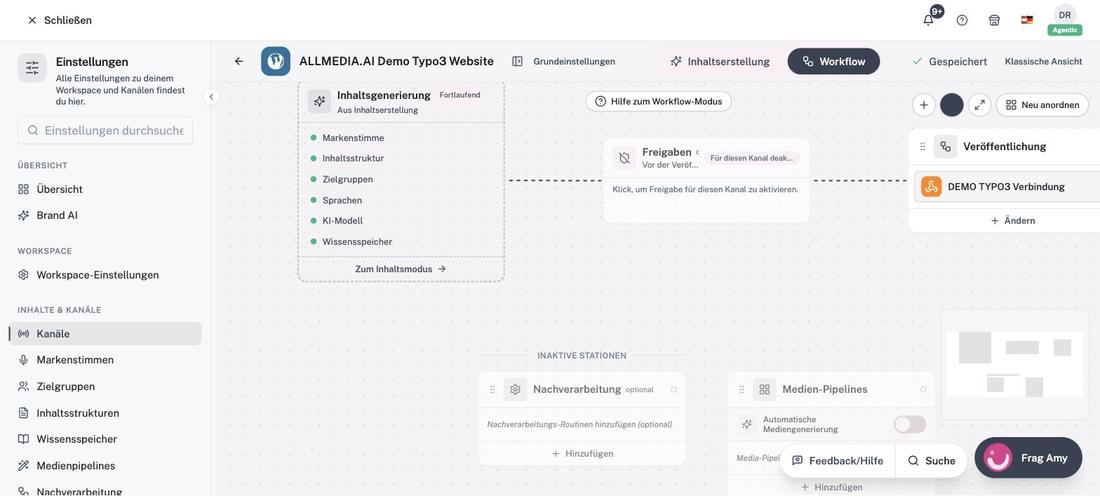
The channel’s workflow mode: Publication station with the assigned connection. -
Run a test post
Publish a test post via the channel and check whether the workflow receives the payload and sends the callback back.
Outgoing request — what ALLMEDIA sends
When a post is due for publication, ALLMEDIA.AI sends a POST request to the webhook URL.
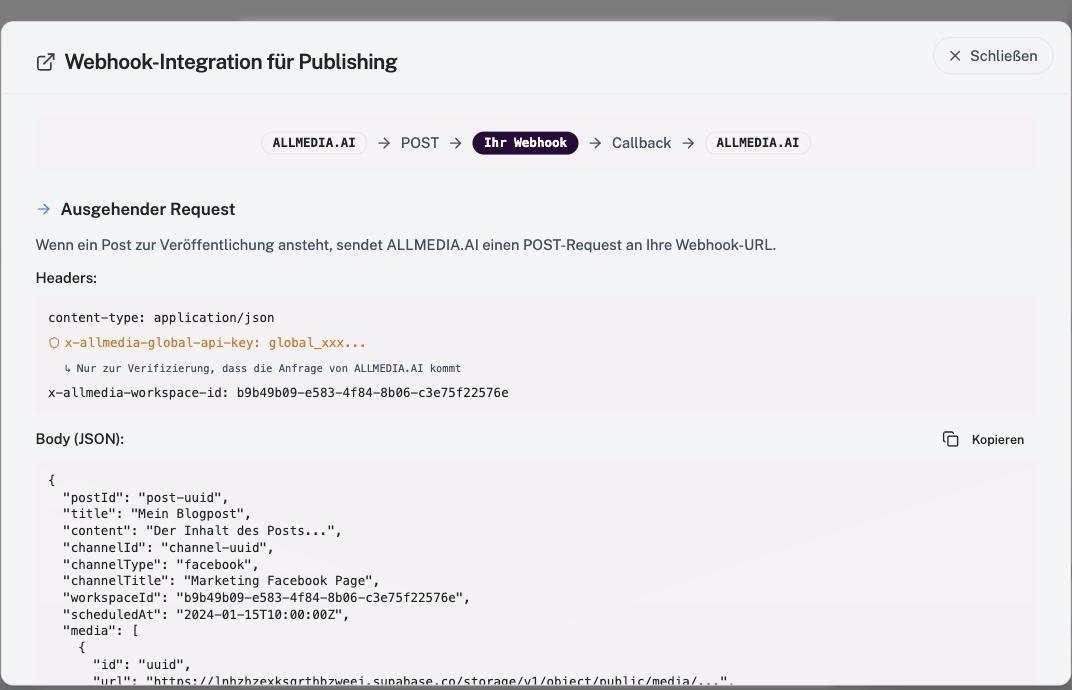
Headers
content-type: application/json
x-allmedia-global-api-key: global_xxx...     // only to verify that the request comes from ALLMEDIA.AI
x-allmedia-workspace-id: b9b49b09-e583-4f84-8b06-c3e75f22576e
Body (JSON)
{
  "postId": "post-uuid",
  "title": "My blog post",
  "content": "The content of the post...",
  "channelId": "channel-uuid",
  "channelType": "facebook",
  "channelTitle": "Marketing Facebook Page",
  "workspaceId": "b9b49b09-e583-4f84-8b06-c3e75f22576e",
  "scheduledAt": "2024-01-15T10:00:00Z",
  "media": [
    {
      "id": "uuid",
      "url": "https://....supabase.co/storage/v1/object/public/media/...",
      "type": "image",
      "mimeType": "image/jpeg"
    }
  ],
  "webhookUrl": "https://....supabase.co/functions/v1/publishing-callback"
}
The media field is an array and can contain several media files. webhookUrl is the address to which the callback must be sent.
Optional SEO and schema.org fields
If the corresponding expert settings are active, the payload also contains:
{
  "seo": {
    "focus_keyword": "content marketing",
    "meta_title": "Content Marketing 2026",
    "meta_description": "Short description for search engines"
  },
  "schema_org": {
    "@context": "https://schema.org",
    "@type": "FAQPage",
    "mainEntity": [
      { "@type": "Question", "name": "Question?", "acceptedAnswer": { "@type": "Answer", "text": "Answer." } }
    ]
  }
}
Callback — what has to be reported back
x-allmedia-api-key. It is required for write access back into the system.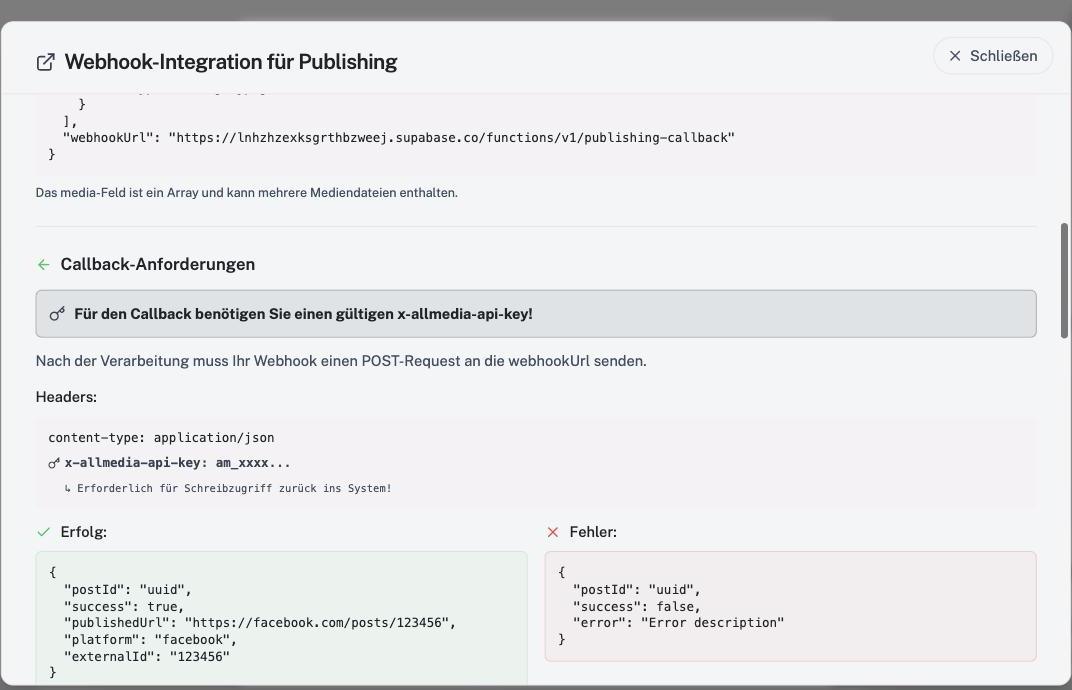
Headers
content-type: application/json
x-allmedia-api-key: am_xxxx...
Success
{
  "postId": "uuid",
  "success": true,
  "publishedUrl": "https://facebook.com/posts/123456",
  "platform": "facebook",
  "externalId": "123456"
}
Error
{
  "postId": "uuid",
  "success": false,
  "error": "Error description"
}
cURL example
curl -X POST \
  'https://....supabase.co/functions/v1/publishing-callback' \
  -H 'content-type: application/json' \
  -H 'x-allmedia-api-key: am_xxxx...' \
  -d '{
    "postId": "post-uuid",
    "success": true,
    "publishedUrl": "https://example.com/post/123"
  }'
Obtaining an API key
- In ALLMEDIA, open profile menu → For Developers → API Keys (or directly in the webhook dialog under Expert Settings → “Create new key”).
- Create a new API key.
- Store the key securely — it is only shown once.
webhookUrl from the incoming payload and the x-allmedia-api-key for the callback.Field reference
| Field | Area | Meaning / default value |
|---|---|---|
| Name | Basic | Internal display name of the connection. |
| Webhook URL | Basic | Required field. Address to which the posts are sent via POST. |
| Transfer format | Basic | HTML (recommended) · Markdown (original text, default) · Plain text. |
| API key authentication | Expert | Sent as the header x-allmedia-api-key. |
| Custom Headers | Expert | Optional HTTP headers for all webhook calls. |
| Health check address | Expert | Your own address for the daily availability check. |
| Method | Expert | HTTP method of the health check. Default GET. |
| Include SEO fields | Expert | Off (default). Adds a seo object to the payload. |
| FAQ markup | Expert | Do not send (default) · schema.org FAQPage. |
Troubleshooting
| Symptom | Cause and solution |
|---|---|
| Connection test fails | URL not publicly reachable, no HTTPS, or the endpoint doesn’t accept POST requests. Test it directly with the copied cURL command. |
| Post stays stuck “publishing” | The callback is missing. After 30 minutes, the post is automatically marked as failed. Check whether the workflow responds to the webhookUrl from the payload. |
| Callback is rejected | Missing or invalid header x-allmedia-api-key. The key is mandatory for write access back into the system. |
| API key lost | Keys cannot be displayed again. Create a new key and replace it in the workflow. |
| Formatting looks wrong at the destination | Change the “Transfer format” — for newsletter editors and CMSs, usually HTML. |
| Connection is shown as faulty | The daily health check fails. Check the health check address; it must respond with a status below 400. |
| Media missing at the destination | media is an array — the workflow has to process all entries, not just the first one. |